Data Exchange with MARKING system
You can export (transfer) all labels used in cxE with content to MARKING system and, for example, directly activate the print process in MARKING system. Once you have started the export in cxE, one or several MARKING system projects with all labels are automatically created for further processing. The number of MARKING system projects that will be created depends on the data transfer mappings configured for the Universal Data Interface (UDI) (see below).
This topic contains the following sections:
Software requirements
The following software must be installed prior to the transfer of label data from cxE to MARKING system:
- clipx ENGINEER Web Link application. This application manages the connection between cxE and MARKING system. The application must be running on your computer (in the foreground or background) to enable the data transfer.You can download the software at the CLIPX ENGINEER product page. (On the product page, navigate to the 'Downloads' section, click on 'Software', download the clipx ENGINEER Web Link archive and install it on your computer.)
Note
If the clipx ENGINEER Web Link application is not installed and running on your computer and you start the export, cxE generates an export file (.klm file) which you can then manually import in MARKING system. - MARKING system (minimum version 1.2) with the Universal Data Interface (UDI). The UDI allows to transfer label data directly from cxE to MARKING system (manual data transfer is no longer necessary).You can download the software at the MARKING system product page. (On the product page, navigate to the 'Downloads' section, click on 'Software', download the zip archive and install it on your computer.)
Workflow
In order to start the export process from cxE, select INTERFACES > EXPORT | MARKING system. When the export is started, the following steps are executed:
- A connection to MARKING system is automatically established, the UDI service is started in MARKING system and MARKING system is connected to the UDI service. (The connection is closed when you exit MARKING system.)The UDI status icon appears in the upper-right corner of the MARKING system's menu bar when the UDI service is running.
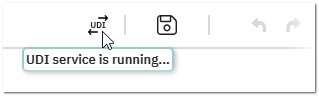
Note
The UDI service must be running for the data exchange process. If it's not, manually start the UDI service by clicking the INTERFACES > Universal Data Interface | UDI Start button in the ribbon of MARKING system or by pressing the Start service button in the INTERFACES > Universal Data Interface | UDI Settings dialog. - Depending on the process settings configured for the UDI (see below), MARKING system opens with the project(s) created from the export data, the project(s) are printed directly, and/or the data is saved in a project file.
- The UDI configuration web page is opened in your default web browser (see the following section).
Universal Data Interface (UDI) configuration
The Universal Data Interface (UDI) is part of MARKING system. The interface is used for the transfer of the label data from cxE to MARKING system. The UDI configuration web page is automatically opened in your default web browser when you start the export.
| Note
You can manually open the UDI configuration web page by clicking the INTERFACES > Universal Data Interface | UDI Start button in the ribbon of MARKING system. |
UDI configuration web page
The UDI configuration web page provides the following areas:
- A Dashboard that allows you to start and stop the connection and that shows the log entries for the activities. You can download the logs to a .log file with the Download log files button.
- The Connection area showing the connection settings that are applied for the export process. Here you can configure the connection settings and define how the cxE project is processed in MARKING system. MARKING system provides a default connection configuration which you can use as is for the data transfer. When you want to change the connection settings, click the Stop connection button and edit the following settings:
To apply the modified settings, click Save and connect.Settings Description Process settings The following options define how the cxE data is processed in MARKING system (at least one option must be selected). - Open project - Opens the project in MARKING system and displays all labels for further processing.
- Print project - Directly prints the data without manual action in MARKING system.
- Save project - Saves the data in a project file for later use in MARKING system.
clipx ENGINEER settings The checkbox must be selected to enable the data exchange.The group box provides the following cxE specific settings: -
Data source - Specifies the data source folder on your PC (No. 1 in the folder structure shown below) that is used for data exchange between cxE and MARKING system.The data source folder configured for cxE must be a subfolder of the data source folder specified in the UDI Settings dialog in MARKING system (opened via INTERFACES > Universal Data Interface | UDI Settings button).
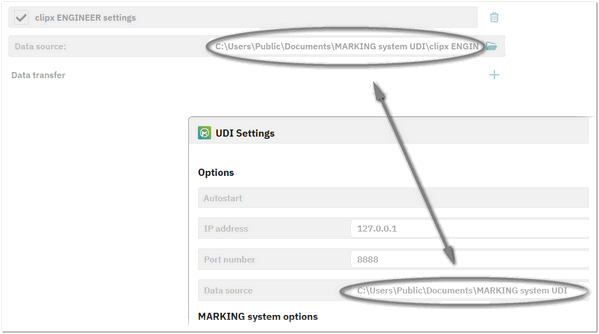 When the export is started, cxE saves the export file (.klm file) to the data source folder. MARKING system monitors this folder for cxE files and automatically starts the import process as soon as a new file is added. After the import process is completed, the export file is removed from the data source folder and moved to a folder in which the imported file is stored (No. 2 in the following example).Folder structure for the default data source C:\Users\Public\Documents\MARKING system UDI: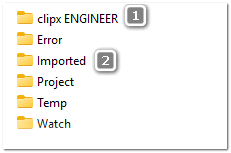
- Data transfer - Maps the cxE data to the transfer setting(s) configured in MARKING system. The Mapping list box provides all transfer settings that are defined on the Data Exchange page in MARKING system (opened from the backstage area).You can add further mappings by clicking the plus button and remove them by clicking the x button.
- Merge in one project - Only available, if more than one mapping is configured. When activated, the cxE data are merged into one project using the selected mappings. If deactivated, MARKING system creates an individual project for each of the configured mappings.
Watch folder This folder is used when projects from other systems are linked and added to the UDI. By default, the relevant files are stored in this folder. The folder works on the same principle than the clipx ENGINEER data source folder (see above).