Replacement Item Number Mapping
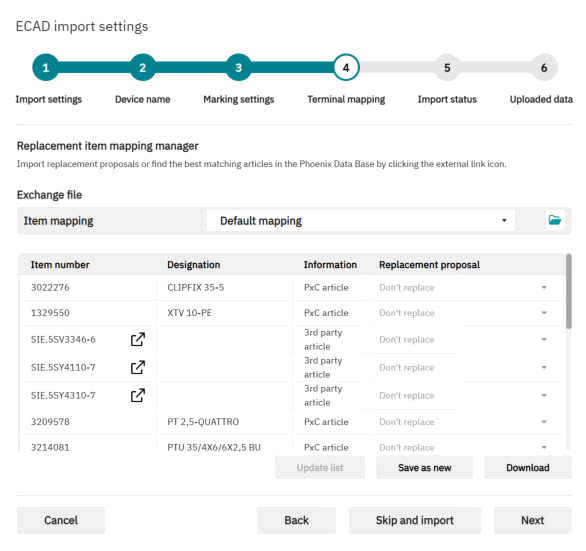
During the import of ECAD projects, items contained in the ECAD export can be replaced with corresponding PxC items. The rules for the mappings between the items contained in the import and the PxC items can be configured during the import process using the Item Mapping Manager (see the following figure). The Item Mapping Manager allows you to save the exchange rules to a new mapping list or download an existing mapping list for later use.
| Further Info
See the Sample Workflow for details on the Item Mapping Manager and how to use it. |
Default mappings
In cxE, default item mapping lists can be created and maintained. These mapping lists can then be selected during the import process (as shown in the dialog above).
The default mapping lists are managed on the Options > Interface settings page in the backstage area. You can either manually define a mapping for each imported item or create the mapping list in Microsoft Excel and import it into cxE.

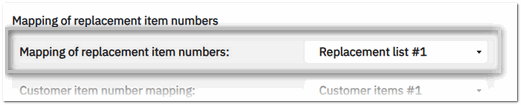
A maximum of five mapping lists can be maintained in parallel. Each mapping list can be assigned to a different project template on the Options > Project settings page
Assignment of a mapping list in the Options > Project settings section:
Working with mapping lists
The tabs at the top of the mapping table represent the available mapping lists. Up to five mapping lists can be defined. Use the Search field to find items within the currently selected mapping list.
| To... | Do the following... |
|---|---|
| Create a mapping list |
|
| Delete a mapping list | Select the mapping list (tab), and then click the Delete button at the bottom left of the page. |
| Edit a mapping list manually | To add a mapping:
|
| Import a mapping list from Excel |
|
| Export a mapping list to Excel | Select the mapping list (tab) you want to export and click the Export button  on the top right. on the top right. |


Excel import/export format
The Excel list contains three columns, "article", "articleName", and "replacement". The first column contains the item number (article number) or item name of the imported item to be replaced and the second column contains item name. The third column contains the number of the replacement item.
Example:

Notes:
- Item numbers (article numbers) must be unique.
- The item number is limited to 32 characters, the name is limited to 64 characters.
- Existing mappings in the selected mapping list will be overwritten during import.